Step by Step instructions for the Nagios connector
markus
Often I receive questions about how to install the connector. Here is a short step by step installation instruction:
- Download the latest release (/downloads/SCOM2Nagios_1.5.zip)
- Extract the archive
- Copy the “Release” folder to c:\
- rename it to scom2nagios
- Copy the “processing.xml” from documentation to c:\scom2nagios
- Start an administrative command shell
- change to c:\scom2nagios (cd /d c:\scom2nagios)
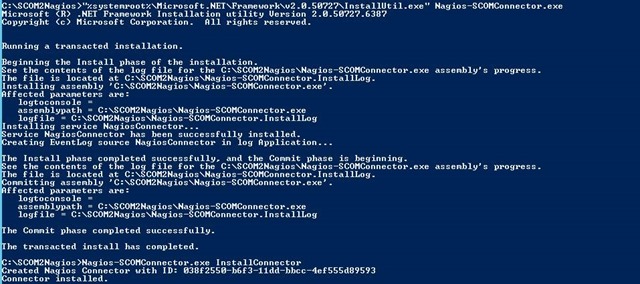
- start the Service Installer with “%systemroot%\Microsoft.NET\Framework\v2.0.50727\InstallUtil.exe” Nagios-SCOMConnector.exe (see the 1. screenshoot)
- Register the connector to SCOM with Nagios-SCOMConnector.exe InstallConnector
- Edit Nagios-SCOMConnector.exe.config and change the ncsaPath (2. screenshoot)
![clip_image002[4]](/wp-content/uploads/2013/04/clip_image0024_thumb.jpg "clip_image002[4]")
- Edit the service “KIT Nagios Connector” to Restart on Failure (3. Screenshoot)
![clip_image002[6]](/wp-content/uploads/2013/04/clip_image0026_thumb.jpg "clip_image002[6]")
- Select the connector in the OpsMgr Console (Administration –> Product Connectos –> Internal Connector, 4. Screenshoot)
![clip_image002[8]](/wp-content/uploads/2013/04/clip_image0028_thumb.jpg "clip_image002[8]")
- Right click the conenctor and select Properties (Screenshot 5)
![clip_image002[10]](/wp-content/uploads/2013/04/clip_image00210_thumb.jpg "clip_image002[10]")
- Add a suitable subscription to the connector to send alerts to it.
![clip_image002[12]](/wp-content/uploads/2013/04/clip_image00212_thumb.jpg "clip_image002[12]")
![clip_image002[4]](/wp-content/uploads/2013/04/clip_image0024.jpg "clip_image002[4]")
![clip_image002[6]](/wp-content/uploads/2013/04/clip_image0026.jpg "clip_image002[6]")
![clip_image002[8]](/wp-content/uploads/2013/04/clip_image0028.jpg "clip_image002[8]")
![clip_image002[10]](/wp-content/uploads/2013/04/clip_image00210.jpg "clip_image002[10]")
![clip_image002[12]](/wp-content/uploads/2013/04/clip_image00212.jpg "clip_image002[12]")